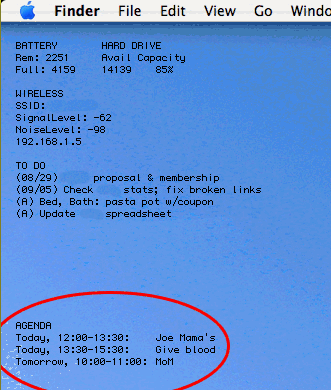
 For a long time, I’ve wanted fast access to Google Calendar’s agenda view. Essentially, I don’t like waiting for the page to load every time I have to remind myself of the time of some appointment in the next day or two. Feel free to read my solution and skip my disclaimers and ramblings.
The major challenges for me have been (1) that I don’t care to open iCal, since I never use it otherwise, (2) that Google presents all its data on one line (making it a bit more complicated to use Unix commands that rely on line endings), and (3) that I don’t want to take up a whole lot of bandwidth or system resources.
I think I’ve finally got a solution, and though it’s a bit complex, it’s worth sharing here. I should mention now that it is Mac-only, though I’m sure capable Windows or Linux users could adapt it readily enough.
My system involves a number of components, some non-standard (in the Mac OS), some optional. But here they are, just so you have a sense up front of where we’re headed:
- A curl command to retrieve data from my calendar’s RSS feed
- A launchd agent to run the curl command periodically (UPDATE: I no longer use this part)
- Lingon to set up the launchd agent (UPDATE: I no longer use this part)
- A Perl script to parse the XML from the calendar feed (UPDATE: The perl script now also runs the curl command directly)
- A few Perl modules to support the script
- Geektool to send the output of the script to my desktop periodically
What I will discuss here is how I implemented a system that is perfect for my needs. I won’t really suggest modifications or alternatives, though I welcome such thoughts in the comments.
Still, a few limitations are worth noting:
- As it stands, this doesn’t address multiple calendars; I have only one that I check with any frequency
- I use 24-hour time, because I don’t care enough to convert to 12-hour; if you do, please post your changes.
- At this point, the launchd command fails if I go without an Internet connection for more than 10 minutes or so (which causes the curl command to fail). I can restart it easily enough, and I usually have a connection. But, consider this fair warning, and give us a comment if you have any ideas.
- As I’m not an expert in any of this, really, I don’t know how portable my solution is, nor how efficiently my code is written. Comments are welcome.
Otherwise, happy reading.
Using curl to Get the Data
First, create a plain text file in your user directory. Open a new terminal window, and type
pico .gcalfeed.xml
Then type Ctrl-O, then the enter key. Finally, type Ctrl-X to exit pico.
I use the following curl command to retrieve my calendar’s private feed from Google. Note that the lines are broken artificially; otherwise you’d have a wicked horizontal scroll bar right now.
/usr/bin/curl -f -s

http://www.google.com/calendar/feeds

/[your.gmail.username]%40gmail.com/

[your-private-calendar-feed]/full
-o /Users/[your-OS-X-user-directory]/.gcalfeed.xml
First, note that I specify the full path to curl, which will become necessary once we’re using launchd to run it. The -f flag makes the command fail silently (for example, if I have no Internet connection). The -s flag keeps curl’s bulky status meters out of my system logs.
The next three lines are the URL, which you can retrieve in its entirety by going your calendar’s details page in Google Calendar. To grab the XML link for your Private Address, click the XML button in the Private Address section and copy the URL. Be sure you change the end of the URL from “/basic” to “/full” before you use it.
The last flag above, -o, tells curl to save the output to a file. Mine is in my OS X user directory to avoid permissions issues; it’s got a period at the front of its name so I don’t have to look at it all the time.
It’s worth trying all this from the OS X Terminal with your own information till you’re certain it works for you.
Using launchd to Run the curl command
UPDATE: The latest version of the script bypasses launchd altogether, simple allowing geektool to call the script directly. In other words, with the version linked to below, you can skip this section.
I used Lingon to set this up, and that’s probably the easiest way for you, too. In Lingon, click the New button. Leave the “My Agents” radio button selected, and click the Create button. Click go to the Expert panel, select all, and paste in the XML below. (Don’t worry if the indentation doesn’t show up.)
Newer versions of Lingon don’t have the Expert panel. In that case, you can also create a text document with this XML at ~/Library/LaunchAgents/ (create the LaunchAgents folder if it doesn’t exist). Follow the com.devan.gcalfeed naming convention, but append “.plist” to the filename. Once you’re done, you’ll have to log out and back in, or restart.
<?xml version="1.0" encoding="UTF-8"?>

<!DOCTYPE plist PUBLIC "-//Apple Computer//DTD PLIST 1.0//EN" "http://www.apple.com/DTDs/PropertyList-1.0.dtd">

<plist version="1.0">

<dict>
<key>Label</key>
<string>com.devan.gcalfeed</string>
<key>ProgramArguments</key>
<array>
<string>/usr/bin/curl</string>
<string>-f</string>
<string>-s</string>
<string>http://www.google.com/calendar/feeds
/[your.gmail.username]%40gmail.com/
[your-private-calendar-feed]/full</string>
<string>-o</string>
<string>/path/to/.gcalfeed.xml</string>
</array>
<key>RunAtLoad</key>
<true/>
<key>ServiceDescription</key>
<string>DownloadGCalFeed</string>
<key>StartInterval</key>
<integer>300</integer>
 </dict>

</plist>
First, where I have com.devan.gcalfeed and DownloadGCalFeed (under the Label and ServiceDescription keys), you can have whatever you want. It is worth using the reverse naming convention for the former, as it will make the process readily identifiable in case you run into trouble.
Next, both the URL string and the string containing the path to your XML file should be on a single line, but once again lines have been artificially broken here.
Finally, theRunAtLoad key tells launchd to run this process once when it is loaded (which happens, among other times, when you log in), and the StartInterval key tells launchd how many seconds should pass between invocations of the process.
Once you’ve pasted this in and included your own information, click Lingon’s Save & Load button.
Using Perl to parse the XML
Download this Perl script (UPDATED to include checking for multiple calendars and with other tweaks; changes should be clear within) and uncompress it. Place gcal.pl somewhere on your system; I chose /usr/local/bin, but do what you like. Also, on lines 34 and 38, you’ve got to include the path to your own XML file.
For the script to work, you’ll need the following Perl modules installed. I use CPAN for installation, which in this case is a good idea because some of the modules have dependencies on others.
- XML::Simple
- Data::Dumper
- Date::Parse
I’ve got a lot of commenting in there, but in brief, the script grabs non-all-day events from today, tomorrow, and the next day, and returns the title and date and time information for each one. Then, it grabs all-day events whose date span includes today’s date, and returns their information.
(In fact, it doesn’t grab them in that order; the last few lines do the sorting to get them that way. All the same.)
Typical output looks like this:
Today, 12:30-14:00: Meet with Andrés

Tomorrow, 08:00-09:00: Call with client

Tomorrow, 19:00-20:00: Dinner at Casbah

Through 09/14: Off from work
UPDATE: A sharp commenter alerted me to the fact that I abandoned this formatting in favor of something much more compact, just a single asterisk next to today’s events. Instructions for restoring the “Today: “, “Tomorrow: “, and “Through: ” labels appear in my response to him/her in the comments below. (Find “third problem” on this page.)
Using Geektool to View the Data
This is the easy part. Install Geektool, if you haven’t already, and set up a new entry. Make it a Shell command, and enter the following:
/path/to/your/gcal.pl
I have GeekTool run the script every 300 seconds.
 Don't Look Now